What is Adobe San Jose CA Charge on Credit Card?

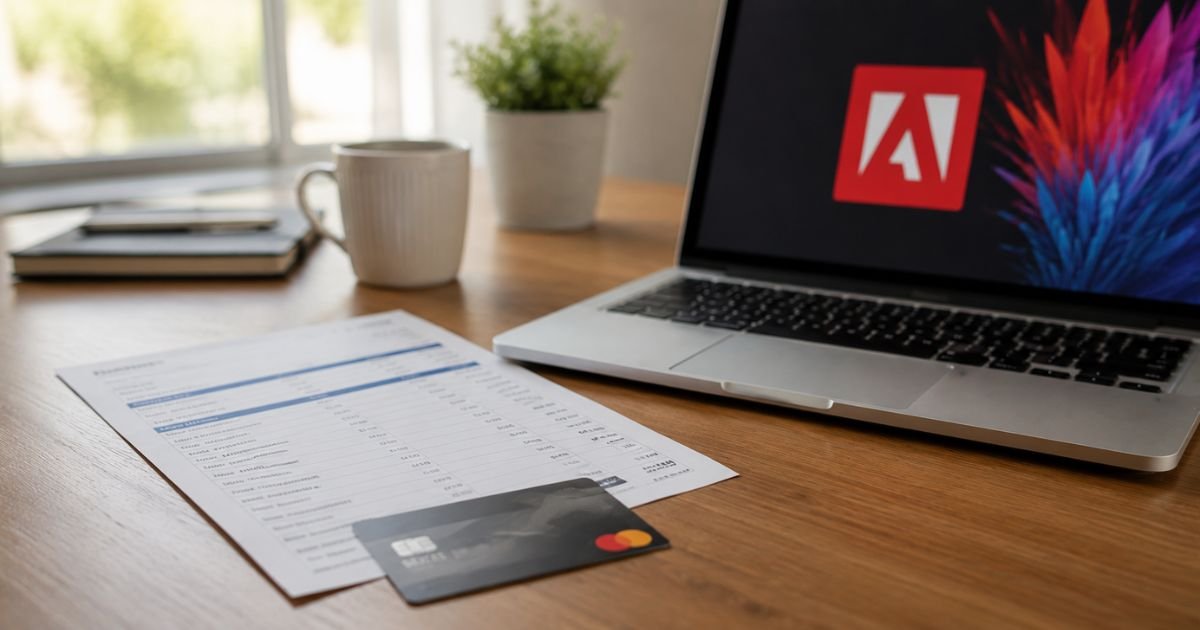
If you recently spotted a “Adobe San Jose CA,” “ADOBE INC -SAN JOSE ,CA,” or something similar charge on credit card statement, you’re not alone. Many people search for this exact phrase every month when an unexpected line item shows up.
This guide explains exactly what the charge means, the most common reasons it appears, how to identify which account and product triggered it, and the practical steps to cancel, dispute, or prevent future charges.
Everything here is based on Adobe’s official help resources and real user patterns.
What Is the Adobe San Jose CA Charge?
The charge comes from Adobe Inc., the company behind Photoshop, Illustrator, Acrobat, Premiere Pro, and the Creative Cloud suite.
When Adobe processes a payment in the United States, the merchant name on your bank statement often includes “San Jose, CA” because that is the city of their corporate headquarters.
You may see slight variations depending on your bank or card network, such as:
- ADOBE INC -SAN JOSE ,CA
- ADOBE *ACROPRO SUBS SAN JOSE
- ADOBE *CREATIVE CLOUD
- CHKCARD ADOBE INC -SAN JOSE ,CA
- POS PURCHASE ADOBE INC -SAN JOSE ,CA
These are legitimate Adobe transactions in the vast majority of cases.
Adobe offers monthly and annual subscription plans for individuals, students, teams, and businesses.
Prices vary by plan and region, but common individual plans currently range from roughly $20–$70 per month before tax.
Why You Might See an Unexpected Adobe Charge
Several everyday situations explain most “mystery” Adobe charges:
Forgotten free trial that converted.
Many Adobe products start with a free trial. If you enter a payment method and do not cancel before the trial ends, the subscription automatically becomes paid.
Auto-renewal of an existing plan.
Adobe subscriptions renew by default. If you signed up months or years ago and forgot about it, the renewal charge still posts.
Multiple Adobe accounts.
Adobe accounts are tied to email addresses. You might have one under a work email, another under a personal email, or an old account you no longer check. The same credit card can be attached to more than one of them.
Someone else used your card.
A family member, roommate, or colleague may have signed up for a plan using a card you share or previously authorized.
Bank card update.
When your old card expires or is replaced, some banks automatically push the new card details to merchants. Adobe can then continue billing the updated card.
Separate product subscriptions.
Canceling Creative Cloud does not cancel Acrobat Pro, Adobe Stock, or other standalone plans. Each bills independently.
How to Identify the Exact Charge Using Adobe’s Charge Finder
Adobe provides a free online tool called Charge Finder that matches the details on your statement to the specific account and product. You do not need to sign in.
Here’s how to use it:
- Locate the charge on your bank or credit card statement and note the exact transaction date, amount, last four digits of the card, expiration date (MM/YY), and currency.
- Go to Adobe’s Charge Finder page (search “Adobe Charge Finder” or visit the official link from Adobe Help).
- Enter the details exactly as they appear on your statement.
- Click Find Charge.
The tool typically returns the email address linked to the charge, the product or subscription name, the transaction date, amount, invoice number, and charge type.
It works for charges from the past three months. Newer transactions can take up to 48 hours to appear in the system.
If the tool finds a match, sign in to that Adobe account (or use the “Forgot password” option with the email it shows) and review your Plans page.
What to Do If You Recognize the Charge
Once you know which plan it belongs to:
- Sign in at account.adobe.com.
- Go to Plans and review active subscriptions.
- Cancel any plan you no longer want. Cancellation usually takes effect at the end of the current billing period, so you keep access until then.
- Update or remove the payment method if needed.
Adobe sends confirmation emails for cancellations. Keep those for your records.
What to Do If You Do Not Recognize the Charge
- Run the Charge Finder tool first.
- Check every email address you have ever used with Adobe (personal, work, school, old addresses).
- Ask household members if they recently signed up for any Adobe product.
- If the tool returns no match or the details still look wrong, contact your bank or credit card issuer right away to report a possible unauthorized charge. Tell them you want the charge disputed and that you do not want future Adobe charges to follow a new card number.
Adobe states it will never ask for your full card number, password, or personal details via unsolicited email or private message. Be cautious of phishing attempts that pretend to be Adobe support.
How to Cancel an Adobe Subscription
You can cancel most individual plans yourself:
- Sign in to your Adobe account.
- Select Plans.
- Find the plan and choose Manage plan or Cancel.
- Follow the prompts and confirm.
For team or enterprise plans, an administrator usually handles cancellations through the Admin Console.
If you cannot access the account or the cancel button is missing, start a support chat or call Adobe support through the official contact options on adobe.com.
After canceling, monitor your next statement to confirm no further charges appear.
Common Mistakes to Avoid
- Waiting too long to investigate. Banks have time limits for disputing charges (often 60–120 days).
- Assuming the charge is fraud without checking the Charge Finder first. Most turn out to be legitimate forgotten subscriptions.
- Canceling only one plan when multiple products are active on the same card.
- Ignoring emails from Adobe. Order confirmations, renewal notices, and price-change alerts usually go to the email on the account.
Practical Tips to Prevent Future Surprises
- Set a calendar reminder a few days before any free trial ends.
- Review your Adobe Plans page every few months.
- Use a virtual card or dedicated payment method for trial sign-ups so you can easily close it.
- Enable two-factor authentication on every Adobe account.
- Keep a simple note of which email and payment method you use for each service.
FAQs On Adobe San Jose CA Charge on Credit Card
Is the Adobe San Jose CA charge a scam?
In nearly all cases, no. It is the standard billing descriptor used by Adobe Inc. for U.S. transactions. Scammers sometimes try to mimic popular merchant names, but the official Charge Finder tool and Adobe support can quickly confirm whether the charge is genuine.
How long does it take for a canceled Adobe charge to stop?
Cancellation usually stops future renewals. You are still billed for the current period that has already started. The next statement after the billing cycle ends should show no new charge. Refunds for the current period are not automatic and depend on Adobe’s policy and timing.
Can I get a refund for an unrecognized Adobe charge?
If the Charge Finder links the charge to an account you control, contact Adobe support to discuss a refund or goodwill credit. If the charge is unauthorized, your bank or card issuer handles the dispute process under their zero-liability policies.
Why does the amount look different from Adobe’s listed price?
Sales tax, currency conversion, promotional periods ending, or multiple plans billing on the same day can change the final amount. Failed previous payments can also cause catch-up charges.
Conclusion
An Adobe San Jose CA charge on credit card is almost always a legitimate payment for an Adobe subscription or product processed through the company’s San Jose headquarters.
The fastest way to resolve confusion is to use Adobe’s free Charge Finder tool, review the linked account, and cancel any plans you no longer need.
If the charge cannot be matched or looks fraudulent, contact your bank promptly.
Taking a few minutes to check now prevents repeated surprise charges later and keeps your billing under control.
Disclaimer: This article is for informational purposes only and does not constitute financial, legal, or official Adobe advice. Billing policies, prices, and tools can change. Always verify details directly with Adobe and your card issuer for the most current information.