What is BCS MPP Charge on Credit Card?

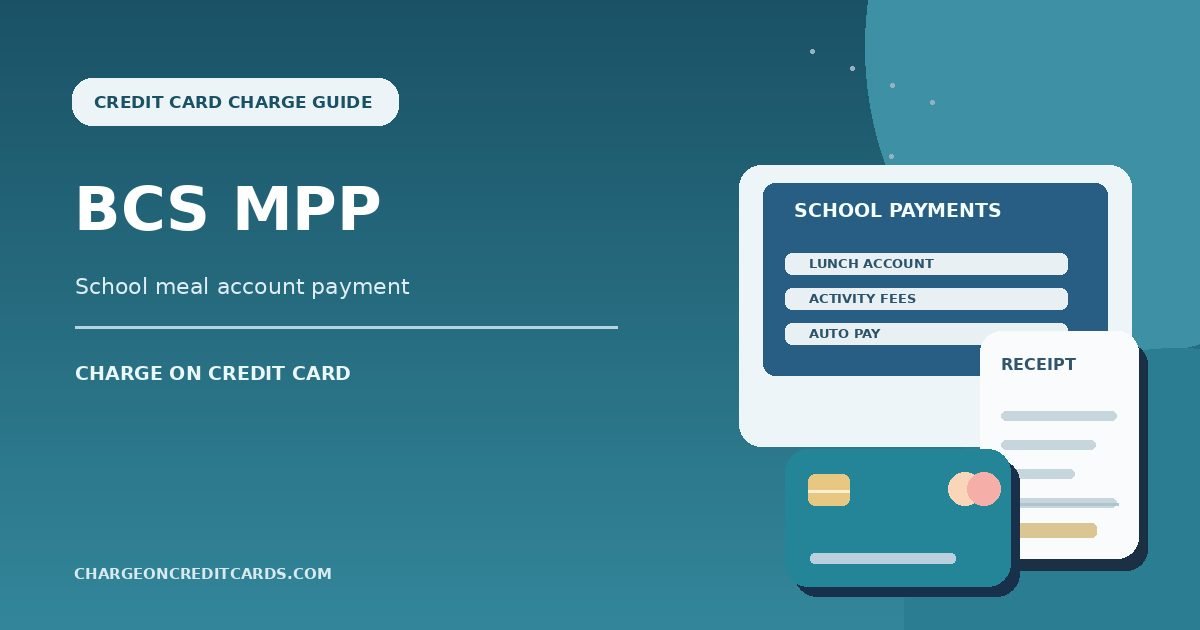
A BCS MPP charge on credit card statements commonly relates to MyPaymentsPlus, a service used by schools to collect lunch payments and other fees. The code can look unfamiliar when you remember only making a deposit for a child.
MyPaymentsPlus lets parents view payment history and manage automatic meal-account replenishment. Here is how to match the charge with a student account, turn off unwanted auto-pay, and investigate any amount that remains unexplained.
What Is BCS MPP Charge on Credit Card?
BCS MPP is a descriptor reported in connection with MyPaymentsPlus, a school-payment system used for cafeteria funds, fees, and activities. The exact letters in BCS are not clearly explained in official consumer guidance.
MyPaymentsPlus provides accounts that parents and guardians can fund through credit cards and other eligible methods. Its payment records can show student accounts, deposits, and selected school charges.
The company also offers an auto-pay feature where a meal account can be replenished when its balance falls below a chosen threshold. This can create card payments without a new manual checkout each time.
The BCS MPP label alone does not confirm which school district, student, or service caused a payment. Check the issuer’s complete transaction description and the parent portal’s payment history.
School Lunch Deposits and Activity Fees
Parents commonly use MyPaymentsPlus to add money to a school lunch account. The deposit may appear on the card as the platform’s payment name rather than the name of the child’s school.
Some districts also accept activity fees, special event tickets, class payments, or other charges through the same account. Check the exact payment category rather than assuming every entry represents food.
A family with multiple students may make several deposits or a combined payment. The platform can show which student or account received the funds when the school supports that information.
The card charge may include an applicable program or payment-processing fee shown during checkout. Compare the final receipt rather than just the amount deposited to a student balance.
If nobody in the household is associated with a school using MyPaymentsPlus, do not assume the payment is harmless. Ask the issuer for the complete merchant details.
Find the Payment History in MyPaymentsPlus
Log in at MyPaymentsPlus using the parent or guardian account you control. Its help center says to open My Account and then My Payment History.
Choose a date range that includes the card charge, then compare the payment total and confirmation information. Older payments may require expanding the selected history range.
If you need to check individual cafeteria purchases, look for View Purchase History where supported by the district. That can differ from the history of deposits made using a card.
Match the student account, school, payment date, and card amount. If an entry is missing, make sure you are signed in to the account that actually made the deposit.
Contact MyPaymentsPlus through its official help center if the payment record is unclear. The school or district may have additional information about how the credited funds were used.
Manage or Turn Off Auto Pay
MyPaymentsPlus’ official FAQ directs users to Manage Account and Manage Auto Pay to configure recurring replenishment where available. The feature can trigger when a student’s balance reaches a set threshold.
Review which student accounts have auto-pay enabled and which card or bank payment method is saved. An automatic deposit may happen sooner than expected during a busy school week.
If you no longer want automatic replenishment, use the account controls to turn it off. Confirm that the setting is disabled and save a screenshot of the updated account status.
Turning off future deposits is not the same as withdrawing money already credited to a school account. Ask the district about transfers or refunds of remaining funds.
Do not simply remove a saved card without checking that auto-pay and all applicable linked student accounts are properly updated. Verify the next statement after changing the setting.
Refunds, Multiple Charges, and Unknown Schools
If two similar transactions appear, check whether they are separate student deposits, different school fees, or a pending authorization alongside a completed payment.
MyPaymentsPlus guidance notes that refunds of cafeteria payments can involve the school district because deposited funds are held on the school side. Ask about the applicable district’s policy.
An auto-pay transaction may be triggered by a low account balance rather than a particular meal on the same date. The payment and purchase histories answer different questions.
If you cannot locate the amount, request a confirmation or transaction reference from the platform. Provide only the details reasonably needed to find the payment.
If neither MyPaymentsPlus nor the school recognizes the posted debit, report it through your card issuer. A valid payment platform can still be used without a cardholder’s authorization.
How to Check the Card Transaction
Open the payment in your credit card issuer’s verified app and copy its complete descriptor, transaction date, amount, and any merchant location. Extra letters or numbers may be a processor code, a branch identifier, or an account reference rather than the name of a separate service.
Check whether the entry is pending or posted. A pending authorization can disappear or settle for a different amount, so it should not automatically be counted as a second completed charge. Ask your bank to explain entries that appear to duplicate each other.
Search your email and online receipts for the exact amount and approximate purchase date. Check accounts you control and ask authorized household or business card users whether they recognize the transaction. A company legal name may differ from the brand used at checkout.
Ask the issuer for the expanded merchant-of-record information if no receipt matches. The bank may see a business category, legal entity, country, or processing reference that is hidden in its ordinary statement view.
If the Charge Is Incorrect or Unauthorized
When a valid purchase has the wrong amount, contact the independently verified seller for an itemized invoice and correction. Keep the receipt, the merchant’s reply, and any accepted refund or cancellation terms.
If nobody authorized a posted payment, contact the issuer using the phone number on the card or its secure app. Ask about a dispute or fraud investigation and whether a card lock or replacement is appropriate.
For many United States credit-card billing errors, the Consumer Financial Protection Bureau says you should send written notice within 60 calendar days after the issuer sent the first statement with the error. Use the dedicated billing-error address provided by your issuer.
Save the investigation number, statement copy, and any cancellation confirmation. A card dispute is an investigation, not a guaranteed refund. Continue to meet payment obligations for undisputed amounts as applicable.
Refunds, Recurring Payments, and Account Safety
Two similar transactions may represent separate purchases, a billing renewal, or a pending authorization alongside its settled payment. Check the status and receipt of each one before treating them as duplicate debits.
If a legitimate recurring agreement is identified, turn off renewal through the original merchant or purchasing platform. Merely deleting an app or replacing a credit card may not terminate the agreement or erase a balance due.
A merchant-approved refund usually appears as a separate credit on your statement. Check for its final posting rather than assuming an emailed refund promise immediately reversed the payment.
Turn on transaction alerts, save receipts in a searchable folder, and avoid sharing complete card numbers, CVVs, passwords, or one-time security codes with third-party charge-lookup websites.
Verified References and Remaining Uncertainty
MyPaymentsPlus’ official support FAQ documents online school meal payments, account histories, recurring auto-pay, and school-related fees. Independent descriptor explanations link BCS*MPP to this system, but the letters BCS are not conclusively expanded by the platform in its published FAQ.
Review MyPaymentsPlus’ official support FAQ on auto-pay, meal purchases, and account records for the company-specific details described here. Our guide to identifying an unfamiliar credit card charge explains further checks. The CFPB billing-error guide explains formal dispute steps.
FAQs On BCS MPP
Q: Does BCS MPP mean MyPaymentsPlus?
A: It commonly points to the school-payment service MyPaymentsPlus, but the exact full merchant should be checked through the issuer.
Q: Why did BCS MPP charge without a new checkout?
A: A parent may have enabled automatic lunch-account replenishment when the student balance drops below a threshold.
Q: Where can I find the BCS MPP receipt?
A: Log in to MyPaymentsPlus and open My Account, then My Payment History to find relevant deposits or fees.
Q: How do I stop future BCS MPP payments?
A: Review Manage Account and Manage Auto Pay for each linked student, disable unwanted auto-pay, and save confirmation.
Conclusion
BCS MPP charge on credit card statements should be matched to a verified business record and the specific payment you approved. A matching school payment history or auto-pay record is the strongest way to explain the charge.
If no invoice, order, or authorized account explains the posted charge, contact the card issuer promptly. Keep copies of the merchant information and investigation results.
Disclaimer: This article is for general information only, not financial or legal advice. Company terms, payment providers, and credit-card protections vary, so verify account-specific details with the merchant and your issuer.